Real windows
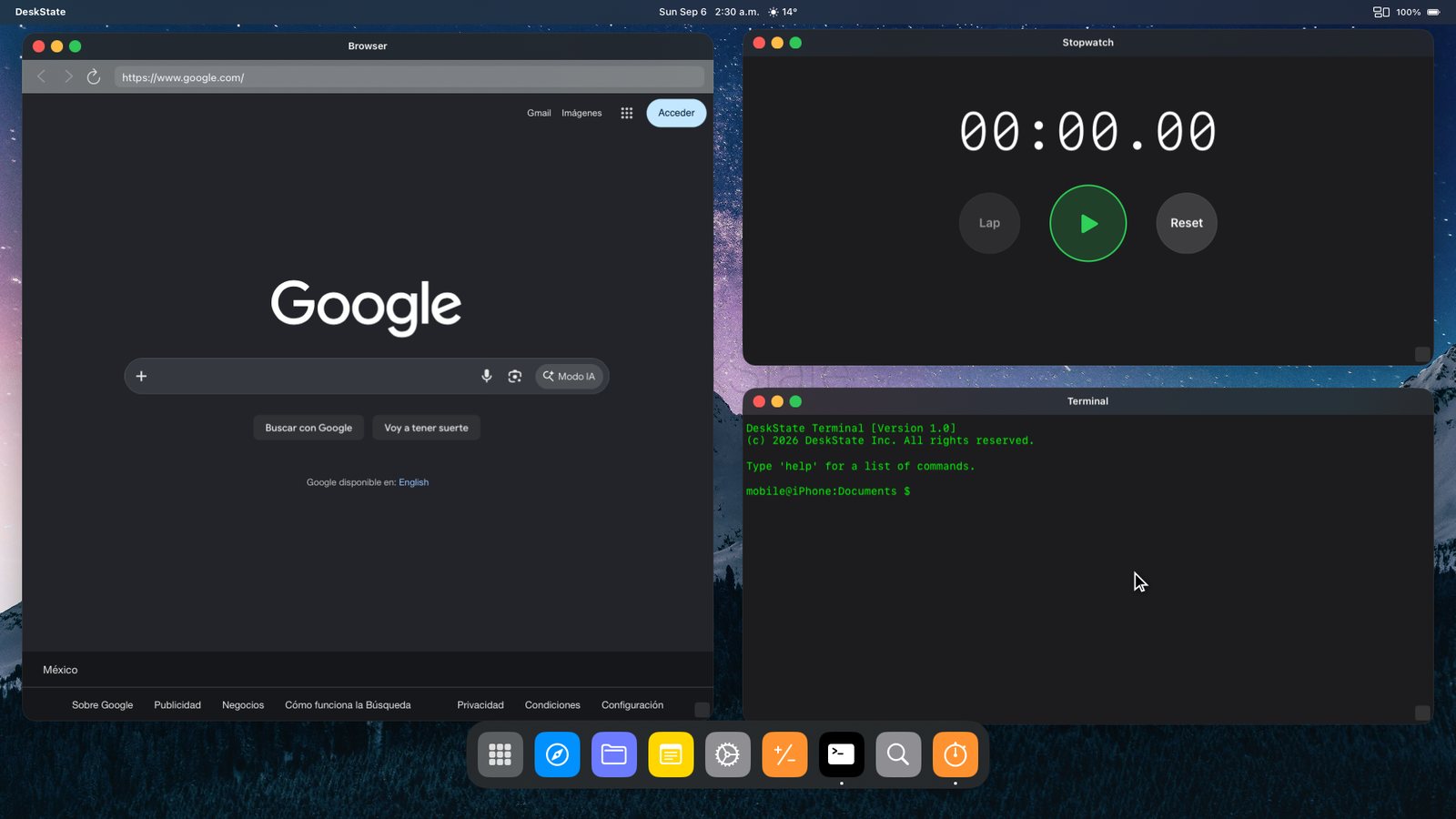
Drag, resize, focus, snap to halves and quarters. Mission Control to see everything at once.
Plug into a monitor or TV and DeskState fills the screen with a desktop: draggable windows, a dock, Spotlight, Mission Control. Your phone becomes the trackpad and keyboard. Native resolution, no black bars.
USB-C to HDMI cable, a portable monitor, a lapdock or AirPlay to an Apple TV. iPhone 15 or newer plugs straight in.
The monitor shows the desktop at its native resolution. The first connection unlocks every Pro feature for 24 hours.
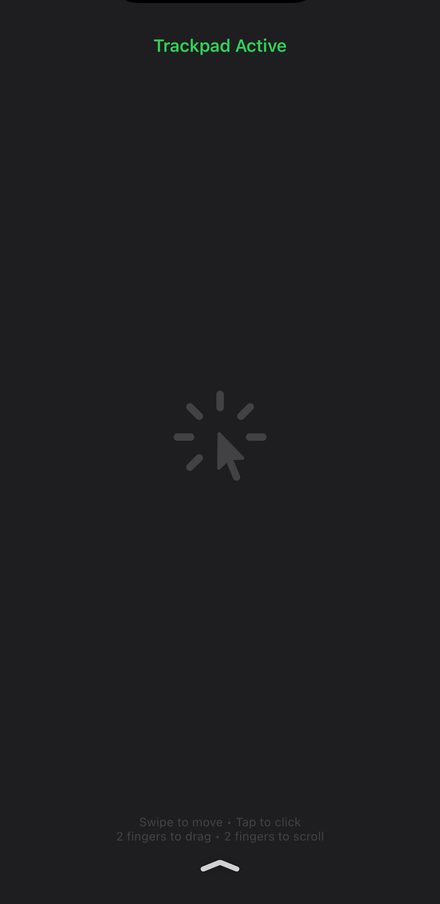
Swipe on the phone to move the cursor, tap to click, two fingers to scroll. Pair a Bluetooth keyboard and mouse if you want the full setup.
Drag, resize, focus, snap to halves and quarters. Mission Control to see everything at once.
Cursor, clicks, scrolling and a keyboard, all from the iPhone in your hand. No extra hardware required.
Fills 16:9, ultrawide and 4K screens at native resolution instead of mirroring a phone-shaped rectangle.
Web panels, Documents, Notes, Console, Quick Calc, Focus Timer, Stopwatch, Tasks and World Clock. All in windows.
Gmail, Calendar, Notion, GitHub, YouTube, Reddit and more open as desktop-class windows. Pin your favourites to the dock.
Accent colours, dock styles, wallpapers or your own photo. Spotlight search to launch anything by name.
The moment you connect a display for the first time, every Pro feature switches on for 24 hours: unlimited time on the desktop, quarter snapping, premium themes and the Pro tools. Use it for a real day of work, then decide.
After the preview you keep the free plan for as long as you like: three desktop sessions a day, five minutes each. Enough to check it still works. Pro removes the limit.
Start your free day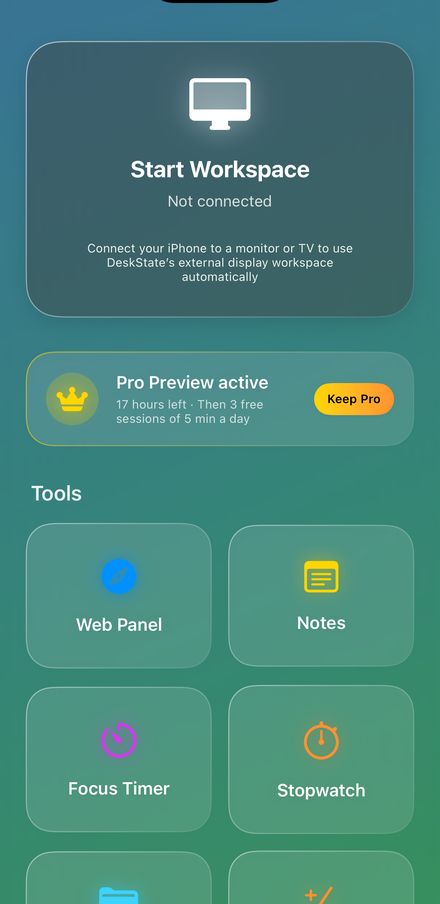
Every plan starts with the free 24-hour Pro Preview. Prices in USD, shown in your local currency on the App Store.
Any iPhone on iOS 18.6 or later. USB-C iPhones (iPhone 15 and newer) connect with a USB-C to HDMI cable or adapter, a USB-C monitor or a lapdock. Lightning iPhones need Apple's Lightning Digital AV Adapter. AirPlay to an Apple TV or AirPlay-compatible TV also works.
No. iOS does not let one app display another, so DeskState runs its own tools and web apps in windows. Gmail, Notion, GitHub, Google Docs and most services work well as web panels.
Yes. Pair them with the iPhone in Bluetooth settings. The phone's trackpad and on-screen keyboard stay available as a fallback.
You drop to the free plan: three sessions a day of five minutes. Nothing is deleted. Upgrade from the app whenever you want the limit gone, or keep using it free.
Subscriptions are billed by Apple. Cancel under Settings → Apple Account → Subscriptions on the iPhone; access continues to the end of the period. Refunds are requested through Apple at reportaproblem.apple.com.
Free download. Your first 24 hours on a monitor are Pro.
Download on theApp Store